
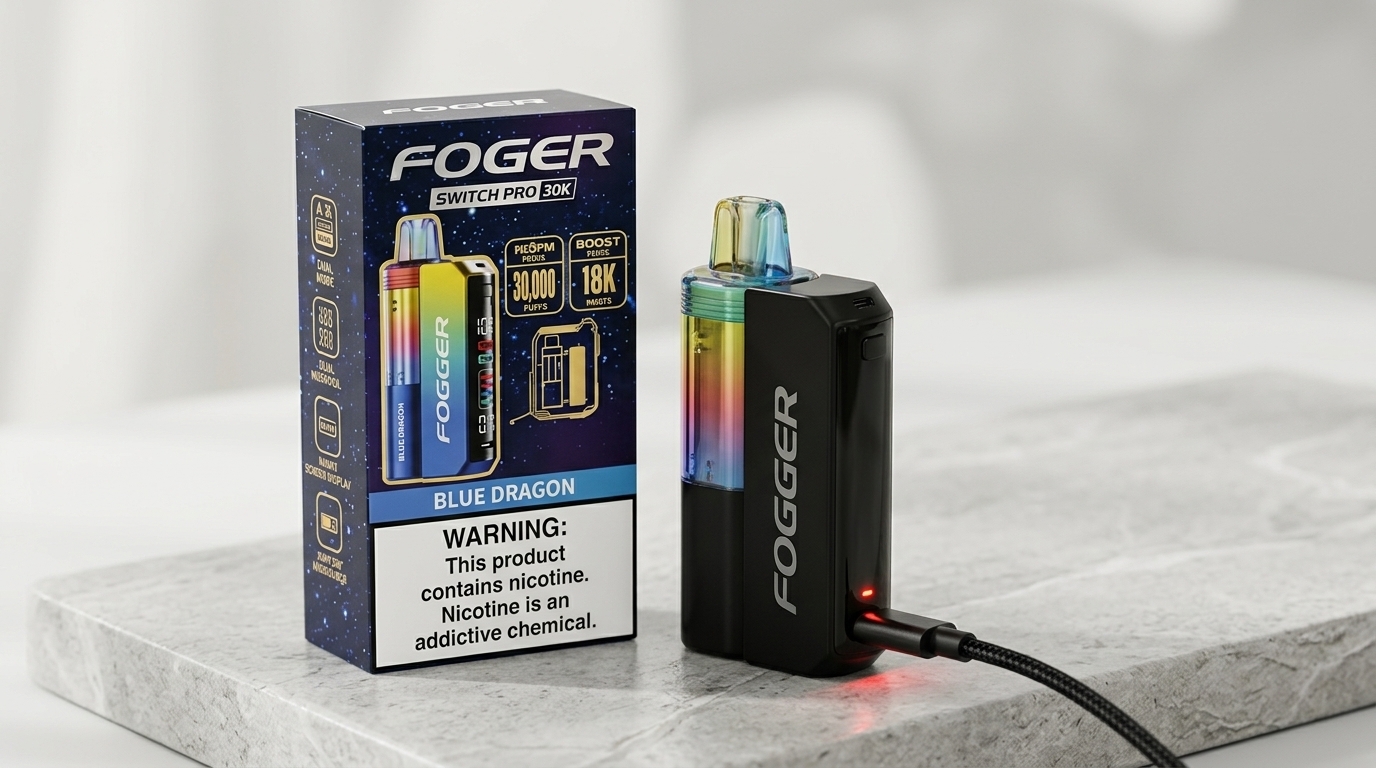
The Switch Pro is not a single sealed bar. It is a two-part system: a reusable dock you keep, plus a pre-filled pod you swap when it runs out. The pod holds 19mL, carries its own 200mAh battery, and snaps onto the dock magnetically. The dock holds an 850mAh battery, charges over USB-C, and keeps the pod charged while you vape. Together they give about 1,050mAh, and a pod is rated up to 30,000 puffs in Normal Mode.
That split changes troubleshooting completely. A kit that seems dead may have a good dock and an empty pod, a pod that is not docked, a pod that works alone for a short time in Normal Mode but will not run Boost Mode without the dock, a pod pack bought without a dock, or a screen that is showing a low dock battery rather than a pod fault. The fix is often in the magnetic connection between pod and dock, not in one part alone.
This guide covers ten problems in a mixed order, starting with weak vapor and battery drain, then pod detection, burnt taste, screen errors, charging, flavor fading, leaking, draw feel, and auto-firing. Each section gives causes, fixes, and a clear replacement rule, so you do not throw away a working dock because one pod is finished, and you do not keep using a finished pod hoping for more puffs.
Read this before you touch anything else: The Switch Pro pods are pre-filled and sealed. Never open a pod, never refill a finished pod with your own e-liquid, never try to replace a coil on its own, and never repair the dock or the pod battery. When an external check fails, pod replacement or dock replacement is the next step, not a DIY repair. Do not charge a dock or pod that is hot, swollen, cracked, leaking heavily, or smells like burning plastic.
Jump to Section
Fogger Switch Pro 30K Kit: Dock, Pod, and What Each One Does
Normal Mode, Boost Mode, and the OLED Screen
Fogger Switch Pro 30K Problems at a Glance
Fixing the Fogger Switch Pro 30K, Pod by Pod
Fogger Switch Pro 30K Kit: Dock, Pod, and What Each One Does
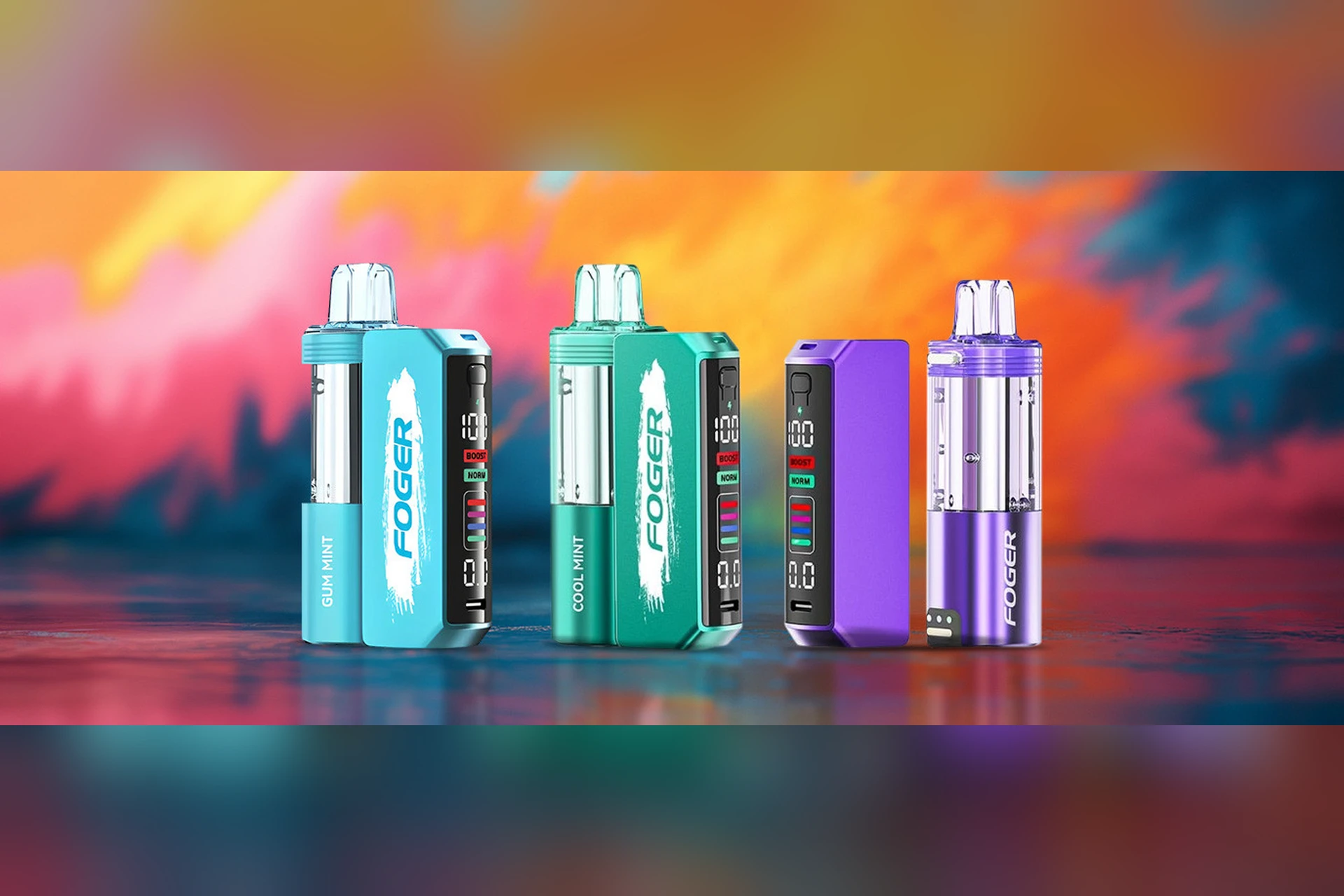
| Entity / feature | What it is on the Fogger Switch Pro 30K |
|---|---|
| Brand | Fogger, also written Foger in some listings |
| Product line | Fogger Switch Pro 30K, also called Switch Pro Kit 30K |
| Device type | Two-part pod system: reusable dock plus magnetic pre-filled pod, not a single sealed bar and not a refillable pod kit |
| Kit contents | 1 reusable dock plus 1 pre-filled pod in the kit; replacement pods are pods only, with no dock |
| E-liquid | 19mL per pod, 5% (50mg/mL) nicotine salt, one flavor per pod |
| Puff rating | Up to 30,000 puffs per pod in Normal Mode; about 18,000 puffs per pod in Boost Mode |
| Battery | 850mAh in the dock plus 200mAh in the pod, about 1,050mAh together; USB-C charging on the dock only |
| Coil | 1.0-ohm dual mesh coil built into each pod; no separate coil change, swap the whole pod when it is finished |
| Display | OLED smart screen on the dock, showing dock battery percentage, puff count, e-liquid level, and mode on many listings |
| Pod connection | Magnetic dock with gold contact pins; transparent tank on the pod lets you see e-liquid level |
| Controls | Mode control on the dock switches Normal and Boost; stepless airflow switch or ring adjusts draw |
| Activation | Draw-activated, no fire button for vaping; the dock control is for mode only |
| Draw style | Adjustable, from tight mouth-to-lung to a more open, airy draw |
| Charging | USB-C on the dock only, with pass-through charging; the pod charges only while docked, with no separate pod charger |
| Safety | Overcharge, short-circuit, and overuse protections listed on many listings |
Puff counts are manufacturer-rated maximums. Longer draws, frequent use, and Boost Mode all lower the real count. A puff rating also does not tell you how long one dock charge will last.
Note on battery figures: some listings phrase the total as 1,050mAh for the dock alone. Detailed breakdowns give 850mAh for the dock plus 200mAh for the pod, for 1,050mAh together. This guide uses that detailed split, because it explains why a pod alone runs for a short time and why Boost Mode needs the dock.
Note on kit versus pod: if you bought a pod pack on its own, it has no dock. That pod will work alone only for a short time in Normal Mode, and it will not charge until it is docked on a Switch Pro dock you already own. This is a common first-use confusion, and it is covered in the FAQ below.
Note on other Fogger devices: the Fogger Bit 35K is a separate device, with its own design and flavor range. Do not apply Bit 35K specs to the Switch Pro 30K. This guide covers the Switch Pro 30K kit only.
Normal Mode, Boost Mode, and the OLED Screen
Check mode and screen before you assume a fault. On the Switch Pro, mode and screen readings explain most complaints, because a pod in the wrong mode, with a flat dock, or with an airflow switch set too tight can look broken when it is only set differently.
Normal Mode
Normal Mode is the everyday, lower-power setting. It fires a single coil in detailed listings, gives a smoother, cooler draw, uses e-liquid and battery more slowly, and is rated up to 30,000 puffs per pod. Normal Mode works with or without the dock, using the pod battery alone for a limited time. This is the mode to use for most of the pod life, and for baseline testing when something feels wrong.
Boost Mode
Boost Mode is the higher-power setting. It fires both dual mesh coils at the same time in detailed listings, gives warmer, denser vapor and a stronger hit, but uses e-liquid faster and drains both batteries faster, so the rating drops to about 18,000 puffs per pod. Boost Mode requires the pod to be docked. It will not run on a pod alone. The OLED screen should show the active mode. Mode can stay set after charging until you change it again, so a kit can stay in Boost after a charge until you switch it back.
The OLED screen on the dock shows dock battery percentage, puff count, e-liquid level, and mode on many listings, with puff duration or timer on some listings. A screen that is showing a puff count is not a fault. A screen that shows a low dock battery, an empty pod, or a mode that will not change is the real problem.
The airflow switch is separate from the mode control on the dock. The switch changes how tight or open the draw feels. The mode control changes power and coil use only. Changing mode will not fix a draw that is too tight, and moving the airflow switch will not fix weak vapor caused by a low dock battery.
Fogger Switch Pro 30K Problems at a Glance
| Problem | First thing to check |
|---|---|
| Weak vapor | Dock battery, mode, pod level, pauses between draws |
| Fast battery drain | Boost Mode use, draw length, dock and pod charging habits |
| Not firing / pod not detected | Pod docked magnetically, contacts clean, dock battery, pod level, draw strength |
| Burnt taste | Pod level, Boost Mode, chain puffing, pod age |
| Flashing / screen errors | Dock battery, pod level, mode, pod dock, damage |
| Not charging | USB-C cable, adapter, dock port, pod docked, screen charging sign |
| Flavor fading / flat taste | Pod level, pod age, mode, palate fatigue, second pod test |
| Leaking / gurgling / spitback | Pod seal, mouthpiece condensation, draw strength, heat, damage |
| Draw feels different / airflow | Airflow switch position, mode, blocked inlets, condensation |
| Auto-firing / getting hot | Stop using it immediately, do not charge or reuse it |
Fixing the Fogger Switch Pro 30K, Pod by Pod
A Switch Pro kit can stop producing vapor, fail to charge, leak, flash, or taste burnt when the dock, pod connection, pod level, coil in the pod, mode, or screen has a problem. Basic checks can help identify the cause before a replacement is needed.
Basic pod check, do this first for any problem below, unless that section tells you to stop for safety: Snap the pod firmly onto the dock until the magnetic connection clicks, wipe the magnetic gold contacts on pod and dock with a dry tissue, check the transparent pod tank and the OLED screen for pod level, dock battery percentage, and puff count, set the mode to Normal for baseline testing, set the airflow switch to the middle, and make sure the assembled kit is fully charged. If the tank shows near empty, or the taste is burnt after a full charge, that pod is finished. A fresh pod test, swapping in a second pod, is a useful fault check.
RAZ’s Vue 50K works in a similar two-part way — a reusable power bank you keep, plus a pod you swap — so its pod-detection checks read differently from a sealed bar. Its fixes are covered in RAZ Vue 50K Not Working.
1. Why Is the Vapor Weak on the Fogger Switch Pro 30000?
Weak vapor on the Switch Pro often means the dock battery, mode, or pod level is working against you, not that the pod coil has failed. Start with the OLED screen and mode, because those two checks settle most weak-hit cases in seconds.
Common Causes
- A low dock battery, giving thin vapor even when the pod still has liquid.
- Normal Mode active, which is intentionally lighter than Boost Mode, especially if a Boost hit was expected.
- A pod runs low, so the coil has less to vaporize on each draw.
- Draws taken back to back, with no time for the pod system to recover.
- Blocked airflow inlets or condensation in the mouthpiece, weakening the draw sensor signal.
- An airflow switch set too tight, choking the draw and making vapor feel weak.
- A pod used alone, without the dock, where only Normal Mode power is available.
How to Fix
Do the basic pod check first.
Try one draw in Boost Mode, docked, for comparison. If vapor jumps up sharply in Boost, Normal Mode was the cause, not a fault. Return to Normal for normal use if you want the pod to last. Boost will not run on a pod alone, so dock the pod first.
Take shorter, steadier draws with pauses. Long, hard draws drain power and dry the pod system. Short draws with gaps between them give more consistent vapor.
Set the airflow switch to the middle, then open it a step. A switch set too tight can make a normal hit feel weak. Open it gradually until the draw feels natural.
Clear the mouthpiece gently. Wipe the mouthpiece with a dry tissue and check the inlets for lint or residue. Do not poke inside the device with metal tools.
Try a second pod. If the second pod gives strong vapor and the first pod gives weak vapor on the same charged dock, the first pod is at the end of its life.
When to Replace
Replace the pod if vapor stays weak after the basic check, a docked Boost test, pauses between draws, clearing the mouthpiece, and a second-pod comparison, or if the transparent tank shows near empty. Replace the dock if vapor stays weak with a fresh pod on a fully charged dock in both modes.
2. Why Is the Fogger Switch Pro 30000 Battery Draining Quickly?
Fast drain on the Switch Pro is often Boost Mode doing exactly what it is rated to do. Boost fires both coils at the same time, so a kit used mostly in Boost will need charging far more often, even with about 1,050mAh across dock and pod combined.
Common Causes
- Boost Mode is used for most of the day, which fires both coils harder and drains power faster.
- Long draws and frequent sessions, which drain any battery faster than short, spaced draws.
- A dock that was never fully charged, so the kit starts the day part empty.
- A pod near the end of its life, where the coil needs more power to make the same vapor.
- Charging with a weak cable or adapter, so the dock never reaches a full charge.
- Using the pod alone for hours without docking, draining its small 200mAh cell, then expecting the dock to instantly refill it.
How to Fix
Do the basic pod check first.
Spend a day in Normal Mode and compare. Switch to Normal and note how long the charge lasts. A sharp improvement points at Boost Mode, not at a broken dock.
Charge the assembled kit to full before judging battery life. Dock the pod, use a reliable USB-C cable and a proper wall adapter, and charge until the OLED screen shows a full battery. See Section 6 for charging steps.
Shorten draws and space them out. Long, back-to-back draws are the fastest way to drain the dock and pod. Shorter draws with pauses help both battery and pod life.
Switch back to Normal Mode when the screen shows low battery. Normal Mode keeps vapor consistent when the battery is low, instead of pushing Boost until the kit dies.
Dock the pod when you are not using it alone. The dock keeps the pod charged while docked. Leaving the pod detached for hours lets its small cell drain on its own.
When to Replace
Replace the pod if the drain comes with a near-empty tank. Replace the dock if it dies soon after a full charge in Normal Mode with a fresh pod, shows swelling, heat, or damage, or will not hold a charge at all. Fast drain only in Boost Mode, with normal life in Normal Mode, is expected behavior, not a fault.
3. Why Is the Fogger Switch Pro 30000 Not Firing or the Pod Not Detected?
Not firing or pod not detected on the Switch Pro is most often a docking problem. The magnetic connection has to be firm and clean, and a pod that looks attached but is not fully clicked onto the dock will not fire, even with a charged dock.
Common Causes
- A pod not fully snapped onto the dock, or sitting at an angle on the magnetic connection.
- Dirty or wet magnetic gold contacts on the pod or dock, breaking the connection.
- A sticker, cap, or seal still on a brand-new pod, blocking docking or airflow.
- A low or flat dock, so the screen is dark and the pod cannot fire.
- A pod that is finished, so the kit has nothing left to vaporize from that pod.
- A faulty pod or dock connection after a drop or liquid exposure.
How to Fix
Do the basic pod check first, and confirm the pod clicks onto the dock firmly.
Remove and redock the pod. Lift the pod off, wipe the magnetic contacts with a dry tissue, and snap it back on until you feel the magnetic click. Check the OLED screen for a pod reading after redocking.
Remove any cap or seal on a new pod. On a brand-new pod, check for a cap or seal meant for removal, and take it out before docking. Do not remove internal parts that are not meant to come out.
Try the pod alone, then try a second pod. If the pod fires alone for a short time in Normal Mode but never fires docked, the dock connection is the suspect. If a second pod fires normally on the same dock, the first pod is faulty or finished, not the dock. If neither pod fires, the dock is the suspect.
Draw slowly and steadily. Pull firmly enough to wake the sensor, but not so hard that you flood the pod. If a feather-light draw does nothing, try a slightly stronger, even draw.
When to Replace
Replace the pod if it still will not fire after redocking, contact cleaning, a full dock charge, and a second-pod comparison, or if the transparent tank shows near empty. Replace the dock if neither pod fires on a fully charged dock with clean contacts. A pod that fires only when held at an angle points at a connection fault, not at user error.
4. Why Does the Fogger Switch Pro 30000 Taste Burnt?
Burnt taste on the Switch Pro usually means the pod coil is heating with too little liquid reaching it, or it is being pushed too hard in Boost Mode. Because the coil is sealed inside the pod, a burnt pod cannot be cleaned or repaired. The fix is to stop the cause early, or replace the pod if the coil is already damaged.
Common Causes
- A pod low on liquid, even if the tank still shows some liquid remaining.
- Chain puffing, taking many draws in a row without a pause, so the pod system cannot recover.
- Boost Mode on a pod that is already low, which heats both coils harder and faster.
- A pod near the end of its life, where the coil has worn and flavor has turned harsh.
- A low dock battery combined with long, hard draws, giving a dry, scorched hit.
How to Fix
Do the basic pod check first.
Check the transparent tank. If the level is very low, do not keep vaping it. A low pod is the most common burnt-taste cause.
Switch to Normal Mode. The cooler, single-coil mode is far kinder to a pod that is getting low.
Pause between draws. Leave several seconds between puffs, especially after a long session. This gives the pod system time to recover before the next draw.
Draw shorter and gentler. Long, hard draws pull more heat through the coil and dry it faster. Slow, even draws give a cleaner taste.
Try a second pod. If the second pod tastes clean and the first pod tastes burnt on the same dock, the first pod is finished.
When to Replace
Replace the pod if the burnt taste persists after switching to Normal Mode, pausing between draws, checking the tank, and a second-pod comparison, or if the tank shows near empty. Do not refill a burnt pod or try to clean the coil. A brand-new pod that tastes burnt straight away, with a full tank, points at a factory fault, and should be reported to the seller with the packaging details.
5. Why Is the Fogger Switch Pro 30000 Flashing or Showing Screen Errors?
Flashing and screen trouble on the Switch Pro need to be read with the OLED screen on the dock in mind. A screen showing puff count, battery percentage, or mode is normal. Flashing with no vapor, a frozen screen, a mode that will not change, or a screen that stays blank after charging are the real problems.
Common Causes
- A low or flat dock, the most common reason for blinking with no vapor.
- A pod that is finished, so the kit blinks and stops firing even with some dock battery left.
- A very long draw tripping an overuse protection cut-off, showing as a flash and a stop.
- A pod not fully docked, so the screen cannot settle on a pod reading.
- A screen that is dim, blank, or frozen after a drop, liquid exposure, or deep discharge.
- A short-circuit or internal fault, rarer, but possible after damage or heavy liquid exposure.
How to Fix
Do the basic pod check first.
Charge the assembled kit fully. Plug a known-good USB-C cable into the dock, with the pod docked, and charge until the OLED screen shows a battery level. Many flashing cases clear with a full charge. See Section 6.
Redock the pod and check the screen again. A pod that was not fully clicked onto the magnetic dock can cause a flashing or unsettled screen. Snap it firmly on and watch for a stable pod and mode reading.
Change the mode once to check the screen. The screen should show the mode change between Normal and Boost, docked. If it never changes, or shows the same frozen reading after charging and redocking, the screen or dock is likely faulty.
Draw for less time. If flashing follows a very long draw, keep draws shorter with pauses. Long draws can trip protection and cut the kit off.
Stop if flashing comes with heat or damage. A kit that flashes while hot, swollen, or smelling of burning should not be used or charged. See Section 10.
When to Replace
Replace the pod if the screen shows a near-empty pod and flashing stops with a fresh pod. Replace the dock if the screen stays blank after charging, flashing continues with a fresh pod on a fully charged dock, or the mode will not change. Do not try to repair the screen or battery yourself. A kit that only flashes when the dock is low, and works normally after charging, does not need replacing.
If a kit keeps getting hot, tasting burnt, or flashing after the basic checks, stop using it and check official guidance on vaping health effects before you keep troubleshooting. The Health Effects of Vaping page explains nicotine addiction and the harmful substances that can be present in e-cigarette aerosol.
6. Why Is the Fogger Switch Pro 30000 Not Charging?
A Switch Pro kit that will not charge is usually a cable, adapter, port, dock, or screen problem, not a dead battery on first suspicion. Only the dock charges over USB-C, and the pod charges only while docked, so work through the dock charging path in order, and watch the screen as you go.
Common Causes
- A faulty or low-power USB-C cable, or a cable not pushed fully into the port on the dock.
- A weak wall adapter, a low-output laptop port, or a loose wall socket.
- Lint, dust, or dried liquid in the USB-C port on the dock.
- A deeply discharged dock that needs a few minutes before the screen wakes.
- A pod not docked, so the pod battery never receives charge, even though the dock is charging.
- A damaged port, cable, or battery after a drop or liquid exposure.
- Trying to charge a pod on its own, when pods have no USB-C port and no separate charger.
How to Fix
Do the basic pod check first, and confirm the pod is docked on the dock while charging.
Try a different USB-C cable. Use a cable you know works with another device. Push it straight and fully into the port on the dock until it sits firm. No cable is included in the box in most listings, so a borrowed cable must be a working USB-C cable.
Try a different wall adapter and outlet. Use a standard phone wall adapter, not a very low-power port. Avoid adapters far above the usual phone range, which can stress the cell over time.
Inspect and clean the port and dock gently. With the cable unplugged, look into the USB-C port on the dock for lint or residue, and wipe the magnetic gold contacts with a dry tissue. Do not use metal objects or liquids inside the port.
Give a flat dock a few minutes. A deeply discharged dock can look dead at first. Leave it plugged in, with the pod docked, and watch for the screen to wake and show a rising battery level.
Look for a charging sign on the OLED screen. A rising battery percentage means power is flowing into the dock. No sign after a known-good cable and adapter points at the port or dock.
Do not charge a damaged dock or pod. Heat, swelling, cracks, or a burnt-plastic smell mean stop. Do not plug it in. See Section 10.
When to Replace
Replace the dock if it will not charge with a known-good cable and adapter, the port is damaged, or the screen stays blank after a full charging attempt. The dock battery cannot be replaced on its own, so a dock that will not take charge through a working cable and port is a dock fault. A pod alone will never charge over USB-C, so a pod without a dock is not a charging fault.
7. Why Does the Fogger Switch Pro 30000 Flavor Fade or Taste Flat?
Flavor fading on the Switch Pro is usually a pod life-stage sign, not a flavor-mixing problem. Each pod holds one flavor, sealed inside. A pod that opened strong and now tastes muted, thin, or faintly papery is normally running low, with a coil that has done most of its work for that pod.
Common Causes
- A pod near the end of its 19mL supply, with a worn coil in that pod.
- Heavy Boost Mode use, which wears the pod coil sooner and empties liquid sooner.
- A pod stored a long time, or stored somewhere warm, so flavor has dulled.
- A low dock battery, giving weak, flat vapor from a pod that still has liquid.
- Palate fatigue, where the same flavor tastes weaker after a long session, even though the pod is fine.
How to Fix
Do the basic pod check first.
Check the transparent tank. If the level is low, fading flavor is expected. A nearly empty pod will not recover with mode changes.
Try a second pod for comparison. If the second pod tastes strong and the first pod tastes flat, the first pod is at the end of its life, not the dock. If both pods taste flat, check dock battery and mode before blaming a pod.
Move to Normal Mode. The gentler, single-coil mode can give a cleaner, if lighter, taste from an aging pod. Boost Mode on an old pod often turns flat flavor harsh instead of stronger.
Take a break from the flavor. After a long run on one flavor, a short break can reset your palate. If flavor returns after the break, the pod was never the problem.
Compare the taste after a full charge. A flat dock battery can make a good pod taste muted. Charge the assembled kit fully, then test again before writing the pod off.
When to Replace
Replace the pod if flavor stays flat after a full charge, a move to Normal Mode, a second-pod comparison, and a check of the tank, or if the tank shows near empty or the pod has been in use a long time. Do not try to refresh a faded pod by refilling it, and do not mix liquid into it. The pod is sealed for a reason.
8. Why Is the Fogger Switch Pro 30000 Leaking or Gurgling?
Some condensation in a mouthpiece is normal, but actual leaking, gurgling, or liquid in the mouth is not. On a pod kit like the Switch Pro, leaking is best read as gurgling, spitback, condensation, or a pod seal problem, not as a tank that was overfilled by you, because the pods come pre-filled.
Common Causes
- Condensation builds up in the mouthpiece and airflow path over time.
- Hard, fast draws that flood the pod coil with more liquid than it can vaporize.
- A pod not fully docked, leaving a gap where liquid can escape.
- A cracked pod, damaged seal, or kit dropped or squeezed in a pocket or bag.
- Heat, such as leaving the kit in a hot car or in direct sunlight, which thins liquid and expands air inside.
- A pod used past its end, where seals no longer hold liquid well.
How to Fix
Do the basic pod check first.
Redock the pod firmly and wipe the mouthpiece. Lift the pod off, wipe the mouthpiece and dock contacts with a dry tissue, and snap the pod back on until it clicks. Hold the pod up to the light for cracks or liquid outside the pod.
Clear a flooded pod gently. Wrap a tissue around the mouthpiece end and blow gently through it away from the face to clear excess liquid. Wipe it clean, then draw lightly.
Draw softer and steadier. Hard pulls flood the pod and cause spitback. Slow, even draws let the coil vaporize liquid at the speed it arrives.
Set the airflow switch to the middle. A very open switch with hard draws makes flooding worse. A middle setting gives a steadier hit.
Store the kit upright in a cool place. Keep it upright, not flat in a hot pocket or bag for hours. Heat and pressure changes make leaking worse.
When to Replace
Replace the pod if leaking continues after redocking, wiping, softer draws, and upright storage, if the pod is cracked or the seal is damaged, or if liquid is getting into the dock contacts or screen area. Do not charge a dock with heavy liquid inside the port until it is fully dry and undamaged.
9. Why Does the Draw Feel Different on the Fogger Switch Pro 30K?
Draw trouble on the Switch Pro is often the airflow switch, not the mode control on the dock. A switch set too tight, too open, or bumped in a pocket can make the draw feel choked, empty, or completely different from yesterday, even though the dock and pod are fine.
Common Causes
- An airflow switch set too tight, giving a choked, restricted draw.
- An airflow switch set fully open, giving a loose, airy draw with weak flavor.
- A switch bumped in a pocket or bag, changing the setting without a mode change.
- Boost Mode, which can feel stronger or warmer if a smooth draw was expected.
- Normal Mode, which can feel tighter if a strong, airy draw was expected.
- Blocked inlets or condensation in the mouthpiece, restricting airflow.
- A pod near the end of its life, where vapor output drops and the draw feels empty.
How to Fix
Do the basic pod check first, and set the airflow switch to the middle.
Try each mode position once, cleanly, docked. Change the dock control to Normal, draw, then change to Boost, draw. Compare the two feels. A mode that was unclear often settles after a firm change.
Adjust the airflow switch one step at a time. Move it a small step tighter or looser, then draw. Small steps are easier to judge than a full swing from tight to open.
Set the mode to Normal for a baseline draw. Normal at a middle airflow setting is the standard everyday position. Boost is the stronger position. Pick the combination that matches the draw you want, not just the flavor you want.
Clear the mouthpiece and inlets gently. Wipe the mouthpiece with a dry tissue and check the inlets for lint or residue. Do not poke inside with metal tools.
Confirm the pod is a Switch Pro pod. Pods made for other devices may fit the magnetic dock in some listings, but they are not guaranteed to work correctly on this dock, even if they look similar. Authentic Switch Pro pods are the safe choice.
When to Replace
Replace the pod if the draw stays blocked on a clean, fully docked pod with a full dock battery, if the draw does not change when the airflow switch moves firmly, or if the tank shows near empty. Replace the dock if the draw stays faulty with a fresh, correctly docked pod on a fully charged dock.
10. Why Is the Fogger Switch Pro 30K Auto-Firing or Getting Hot?
Auto-firing means vapor keeps coming without a draw, or the kit stays hot after a draw ends. This is a safety problem, not a setting to adjust. Stop using the kit straight away.
Common Causes
- A draw sensor is stuck by liquid, condensation, or debris, so it keeps thinking you are inhaling.
- Liquid reaching internal contacts after a leak, drop, or liquid exposure.
- A damaged pod or dock after a drop, crush, or heat exposure.
- Overheating from chain vaping in Boost Mode, which can leave the kit warm even without auto-firing.
- A faulty internal connection that keeps the pod coil powered after a draw.
How to Fix
Stop using it immediately. Do not take another draw and do not try to vape through auto-firing. Set the kit down in a safe place away from flammable materials.
Remove the pod only if it is safe to touch. If the kit is not too hot to handle, lifting the pod off the dock can stop firing. If it is too hot to hold, leave it alone in a safe, open area until it cools.
Do not charge it. Never plug in a kit that is auto-firing, hot, swollen, or damaged. Charging a faulty battery can make the problem worse.
Let it cool fully before handling it again. Keep it off bedding, clothing, and other heat-sensitive items while it cools. Do not put it in water and do not put it in a pocket.
Check for visible damage once cool. Look for cracks, swelling, heavy leaking, or a warped pod or dock. Any of these means the kit should not be reused.
When to Replace
Replace the pod and, if needed, the dock straight away if the kit auto-fired, stayed hot, swelled, or showed damage, even if it later cooled and seemed normal. Take a faulty lithium battery kit to an e-waste or battery recycling point. Do not throw it in household trash, and do not try to open, repair, or dismantle it.
FAQS (FREQUENTLY ASKED QUESTIONS)
Why is the Fogger Switch Pro 30K not working?
A Fogger Switch Pro 30000 kit may give no vapor because the pod is not fully docked, the magnetic contacts are dirty, the dock is flat, a pod is finished, or the draw sensor has failed. Snap the pod firmly onto the dock until it clicks, wipe the contacts, check the transparent tank and OLED screen, charge the assembled kit fully, and draw slowly and steadily. Stop using it if it overheats or shows damage.
Why is the Fogger Switch Pro 30K pod not detected?
A pod may not be detected because it is not fully clicked onto the magnetic dock, the contacts are dirty or wet, a cap or seal is still on a new pod, or the pod is faulty. Remove the pod, wipe the contacts with a dry tissue, remove any seal meant for removal, and snap it back on firmly. If a second pod is detected on the same dock, the first pod is the problem.
Why is the Fogger Switch Pro 30K not hitting after charging?
A kit that does not hit after charging may have a pod that is finished, a pod that is not docked, or a sensor fault. Confirm the OLED screen shows a charged dock battery, check the tank, redock the pod firmly, and try a steady draw in Normal Mode. If the screen shows charge but neither pod fires, the dock is likely faulty.
Why is a brand-new Fogger Switch Pro 30K not working?
A brand-new kit may not work because a cap or seal is still on a pod, the pod is not fully docked, the dock is low after shipping, or the mode is unclear. Remove seals meant for removal, snap the pod on until it clicks, charge the assembled kit, set the mode to Normal, set the airflow switch to the middle, and draw slowly. No light or response at all after that may mean a rare factory defect, so contact the seller with the packaging details.
Why is the Fogger Switch Pro 30K screen flashing?
Flashing usually means a low dock, a finished pod, a pod not fully docked, or a long draw tripping protection. Charge the assembled kit fully, redock the pod firmly, and keep draws shorter with pauses. A screen showing puff count, battery percentage, or mode on its own is normal and is not the same as flashing with no vapor. Flashing with heat, swelling, or a burning smell means stop and do not charge it.
How long does it take to charge a Fogger Switch Pro 30K?
Listings checked for this guide give roughly 45 to 60 minutes for the assembled kit over USB-C, with a cable not included in most listings. Charge the pod docked on the dock, with a known-good USB-C cable and a proper wall adapter, until the OLED screen shows a full battery. The pod charges only while docked, with no separate pod charger. Do not judge battery life until the kit has had a full charge.
Can you refill a Fogger Switch Pro 30K pod?
No. The pods are pre-filled and sealed with 19mL. When a pod is finished, you swap it for a fresh Switch Pro pod. You do not refill a finished pod with your own e-liquid. Refilling a sealed pod risks leaking, coil damage, and liquid entering the dock contacts or screen area.
Can you replace the coil on a Fogger Switch Pro 30K?
No, not on its own. The 1.0-ohm dual mesh coil is built into each pod. When the coil wears out or tastes burnt, you replace the whole pod. The dock has no user-replaceable coil, and neither the dock battery nor the pod battery is user-replaceable.
What is the difference between the Fogger Switch Pro 30K Kit and the Pod pack?
The Kit includes the reusable 850mAh dock plus one pre-filled 19mL pod, for up to 30,000 puffs in Normal Mode. The Pod pack includes a replacement pod only, with no dock. If this is your first Switch Pro device, you need the Kit. Buy the Pod pack for refills after your first pod runs out, and only if you already own the dock.
Can a Fogger Switch Pro 30K pod be used on its own without the dock, and does Boost Mode work without the dock?
Yes, a pod can be used on its own for a short time in Normal Mode, using its 200mAh battery, as described in detailed listings. That short standalone use is useful as a fault test, but it is not the normal way to use the kit. Boost Mode, which fires both coils, requires the pod to be docked, and will not run on a pod alone. For full life, and for charging, the pod must be docked on the dock.
Fogger Switch Pro 30000 Not Working Guide · Euphoria Vapes · For adults 21+ only